Google Analytics tells you what people do after they land on your site. It can’t tell you the half that comes first — what people typed into Google to find you. That lives in a separate, free Google tool called Search Console, and if you’ve never set it up, this guide walks you through it start to finish. It takes about ten minutes, and if your site already has Google Analytics, the fiddliest part — proving the site is yours — is usually a single click.
What you’ll need before you start
One thing: the Google account you already use for Google Analytics. Setting up Search Console with that same account is what makes verification easy, because Google can confirm you own the site through the Analytics connection that’s already there.
Not sure which Google account that is — or did a web designer or agency set up your Analytics for you? You’ll need to contact them and ask for three things: the email address of the Google account they used for your Analytics; the password or sign-in for it (or ask them to give your own Google account admin access to it); and confirmation that it’s the account with admin rights on your Analytics. You can absolutely ask them to set Search Console up for you too — but as the site owner, keep that account information on record for the future. It’s yours, and you’ll want it.
Step 1 — Open Search Console
Go to search.google.com/search-console.
Step 2 — Sign in with your Google account
Sign in with the same Google account you use for Google Analytics (see the note above if you’re not sure which one that is). If this is your first time in Search Console, Google will take you straight to the “add a property” welcome screen.
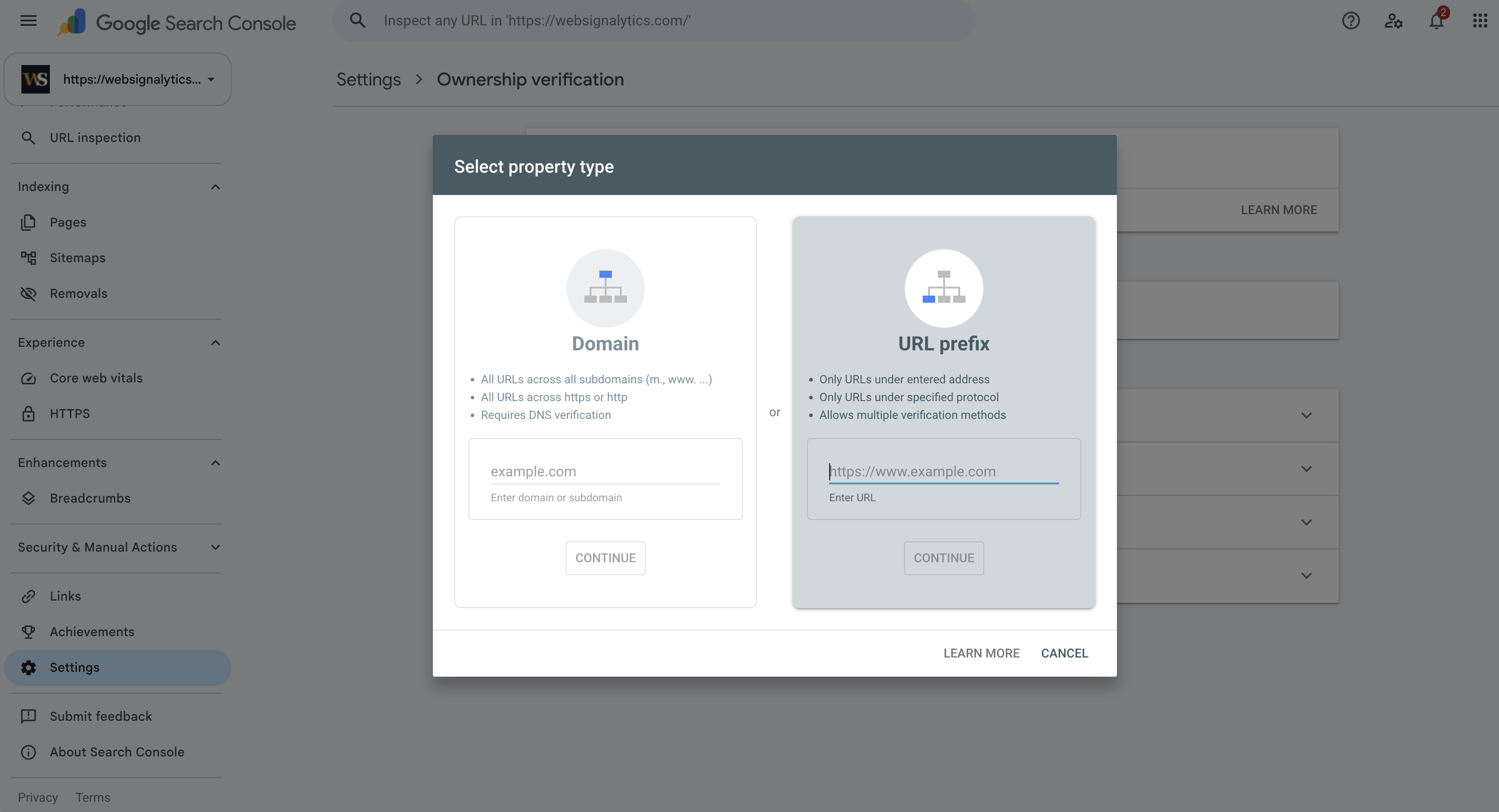
Step 3 — Choose “URL prefix”
On the welcome screen you’ll see two boxes. Click the box on the right labelled URL prefix. (The “Domain” box on the left is a more technical route that needs a DNS change — you don’t need it.)
Step 4 — Enter your website address
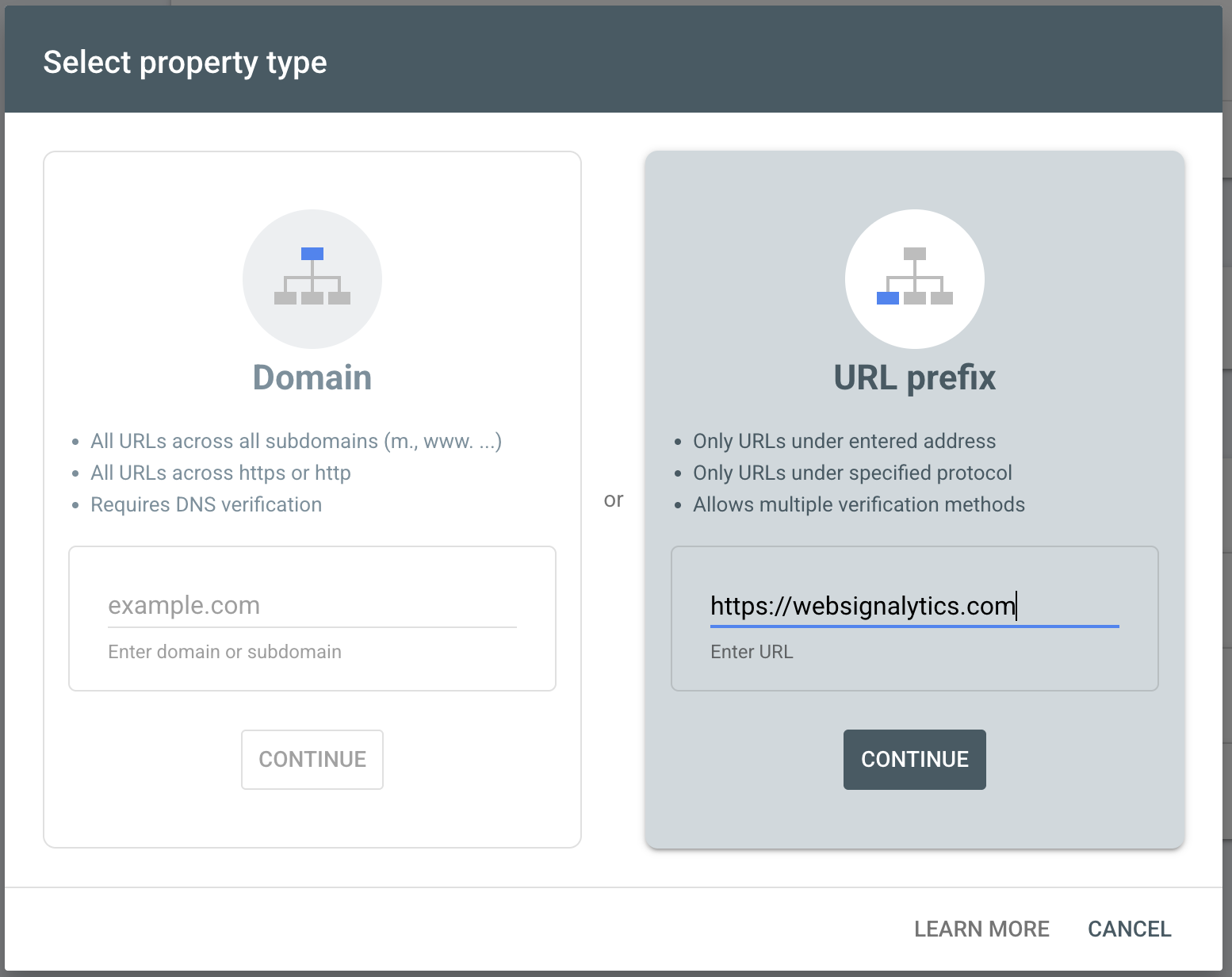
In the URL prefix box, type your full website address exactly as it appears in your browser — including the https:// at the front (for example, https://yourbusiness.com) — then click Continue.
Step 5 — Verify with Google Analytics
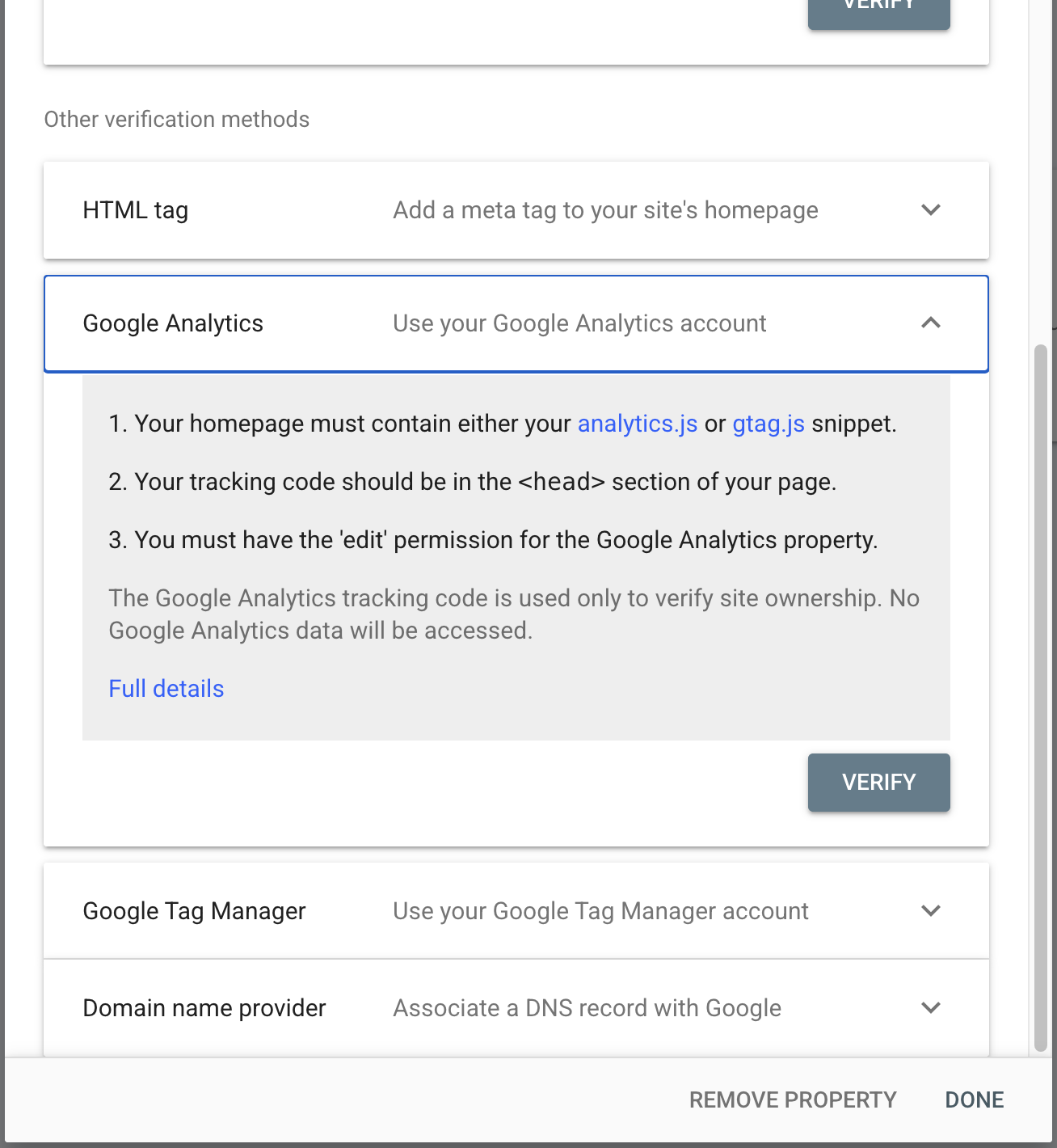
Google now asks you to prove the site is yours, and it offers a few ways to do it. Click the one called Google Analytics. Because your site already has Analytics on it and you’re signed in with that same account, Google checks the connection and usually verifies you right away — nothing to download, nothing to paste in.
If the “Google Analytics” option doesn’t verify you: it means the account you’re signed in with doesn’t have admin rights on the Analytics for this site (see the note near the top). Google also offers other methods — an HTML file to upload or an HTML tag to add to your site — but those are more technical. If you hit this wall, that’s the moment to reply to us and we’ll do it with you on a quick call.
Step 6 — You’re done on Google’s side
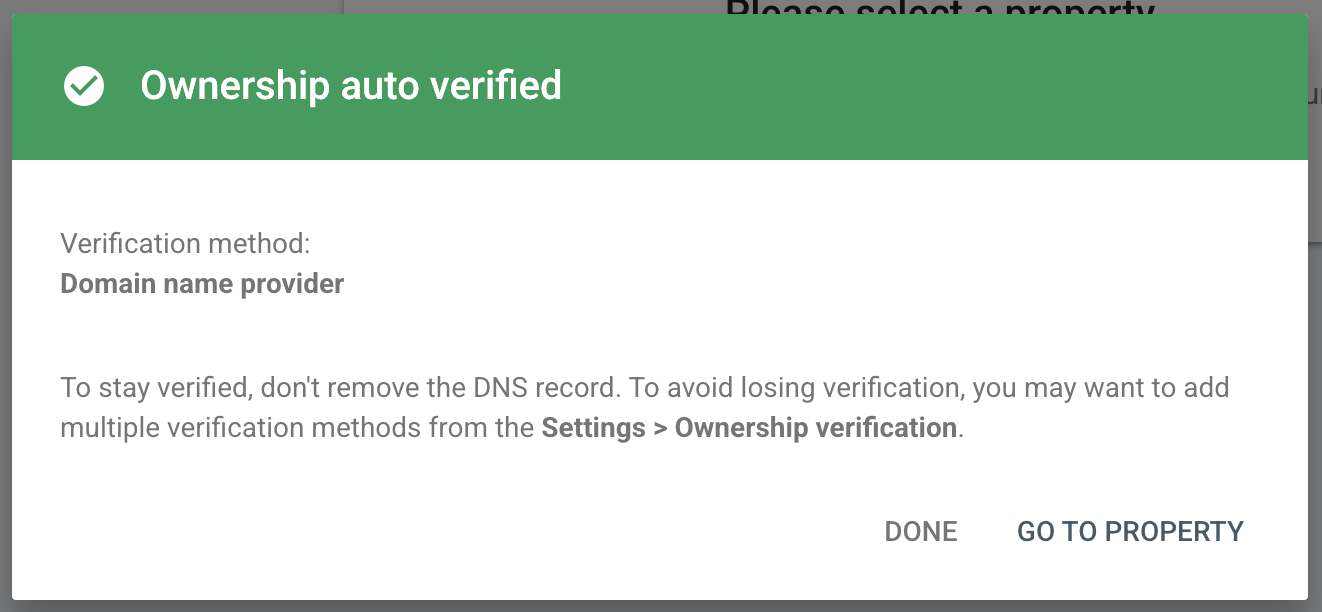
When you see “Ownership verified,” that’s it — your site is now set up in Search Console. Click Go to property to open it. Google starts collecting your search data from here on, so the first day or two may look sparse; that’s normal.
Step 7 — Add it to your WebSignalytics reports
Last step. Once your site is verified, connecting it to WebSignalytics takes two clicks — go to app.websignalytics.com/oauth/gsc/start, approve the read-only Google screen, and you’re done. Your next Monday report will start including an “Organic search this week” section — the searches people used to find you, where you rank, and which pages are one nudge from page one. The connecting-it-to-WebSignalytics guide covers that final step in detail if you’d like to see it first.
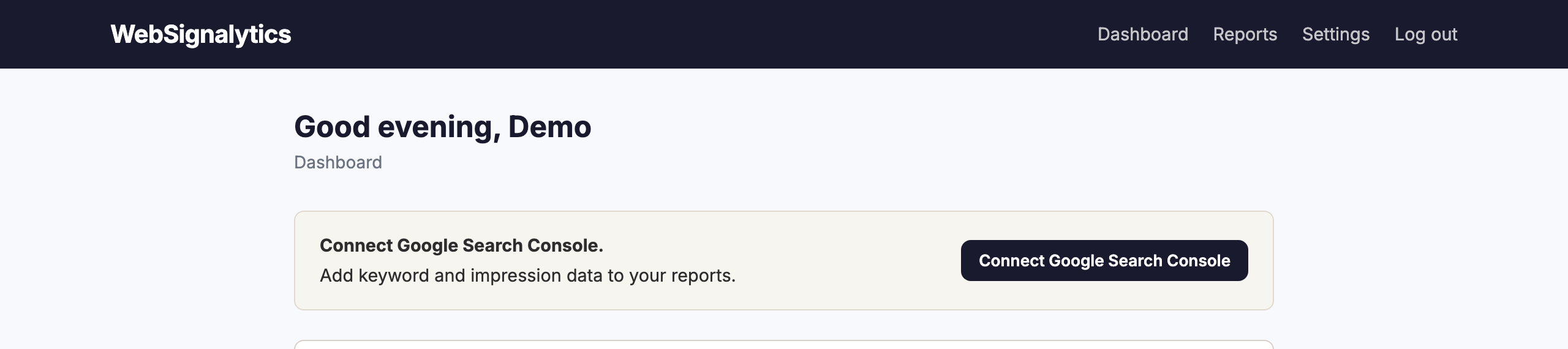
One honest note: the Organic search section only shows up in a week’s report if there were actual search clicks that week. A site you just verified won’t have data yet, so it may not appear in the very first report — that’s expected, not a sign anything’s wrong. It arrives as soon as there’s something to show.
Not feeling confident? That’s fine.
If any step got fiddly, seemed too complicated, or you’re just worried you might break something — don’t push through it alone. Reply to any email from us, or write to [email protected], and we’ll hop on a quick call and set it up with you. It’s a ten-minute job and there’s nothing to be nervous about.
See what people searched to find you
Connect Google Analytics and Search Console in a couple of minutes. Your first plain-language report — what changed, why it matters, and what to do next — arrives the following Monday.
Start your 14‑day free trial